 NormalMapAI
Instant highlight feedback
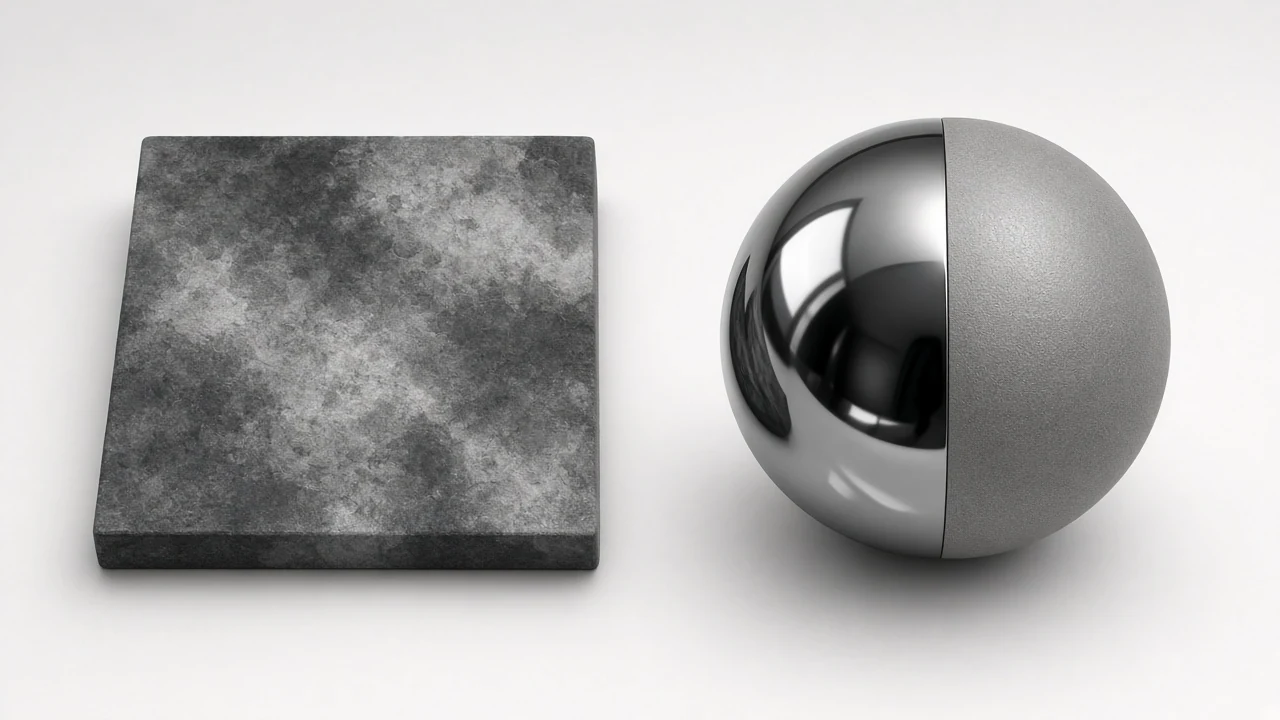
The roughness map generator shows blur versus sharp highlights as you drag, so micro-surface response matches the albedo you already chose.
Free · Local processing · No sign-up
Roughness controls how blurry reflections are. The generator estimates it from brightness and contrast; Unity users can export smoothness instead.
Loading 3D preview…
Ctrl + scroll to zoom
Sample textures: Poly Haven (CC0)
WHAT
A roughness map generator estimates how blurry reflections should be across a surface, writing a greyscale roughness map (or Unity smoothness) from your photo.
NormalMapAI’s roughness map generator lets you invert and contrast the roughness map while watching specular response on a live 3D preview.
Export a roughness map PNG, flip to smoothness for Unity MetallicSmoothness, or pack ORM green via the PBR texture generator.
The roughness map generator never uploads images — ideal for branded product materials and client wood/metal packs.
Combine with the normal map tools so micro-detail and reflection blur stay consistent on the same albedo.
WHY
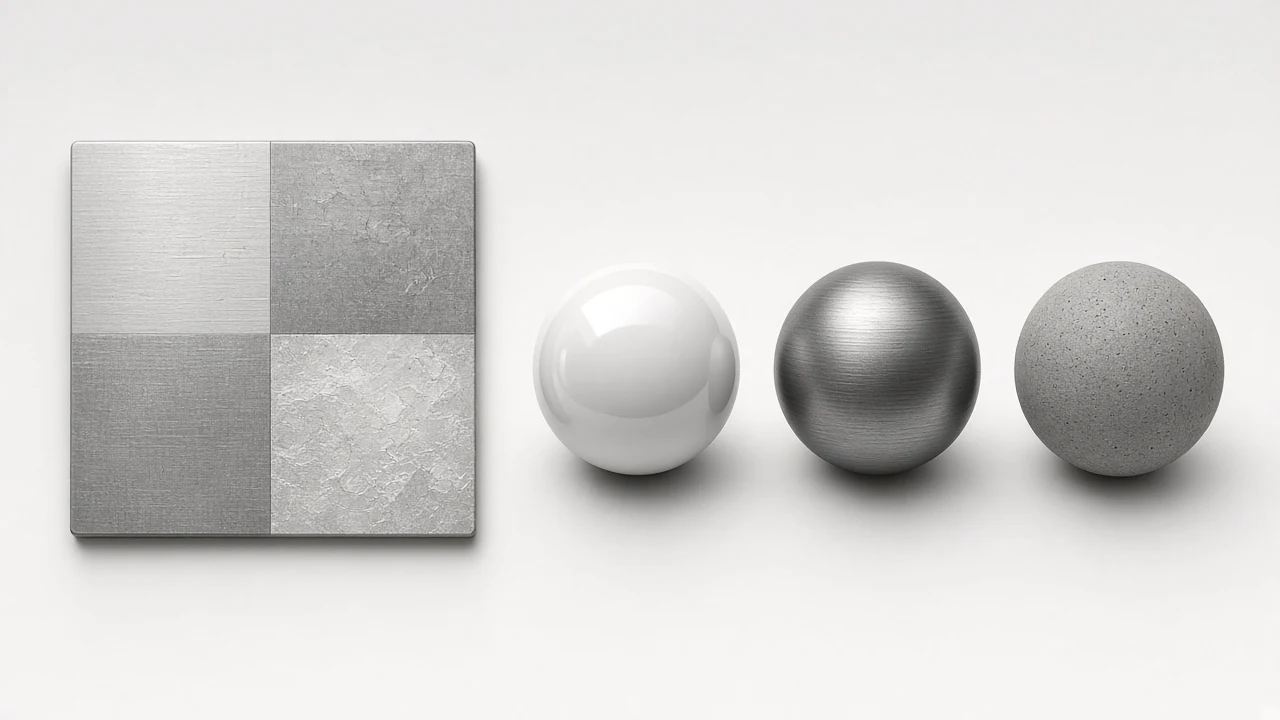
The roughness map generator shows blur versus sharp highlights as you drag, so micro-surface response matches the albedo you already chose.
Invert into Unity MetallicSmoothness packing without opening Photoshop — green-channel smoothness stays aligned with your roughness map.
Keep the roughness map and normal response in one preview language so glossy edges do not fight fake lighting in the normal.

No upload in the roughness map generator: decode, invert and export stay in browser memory.
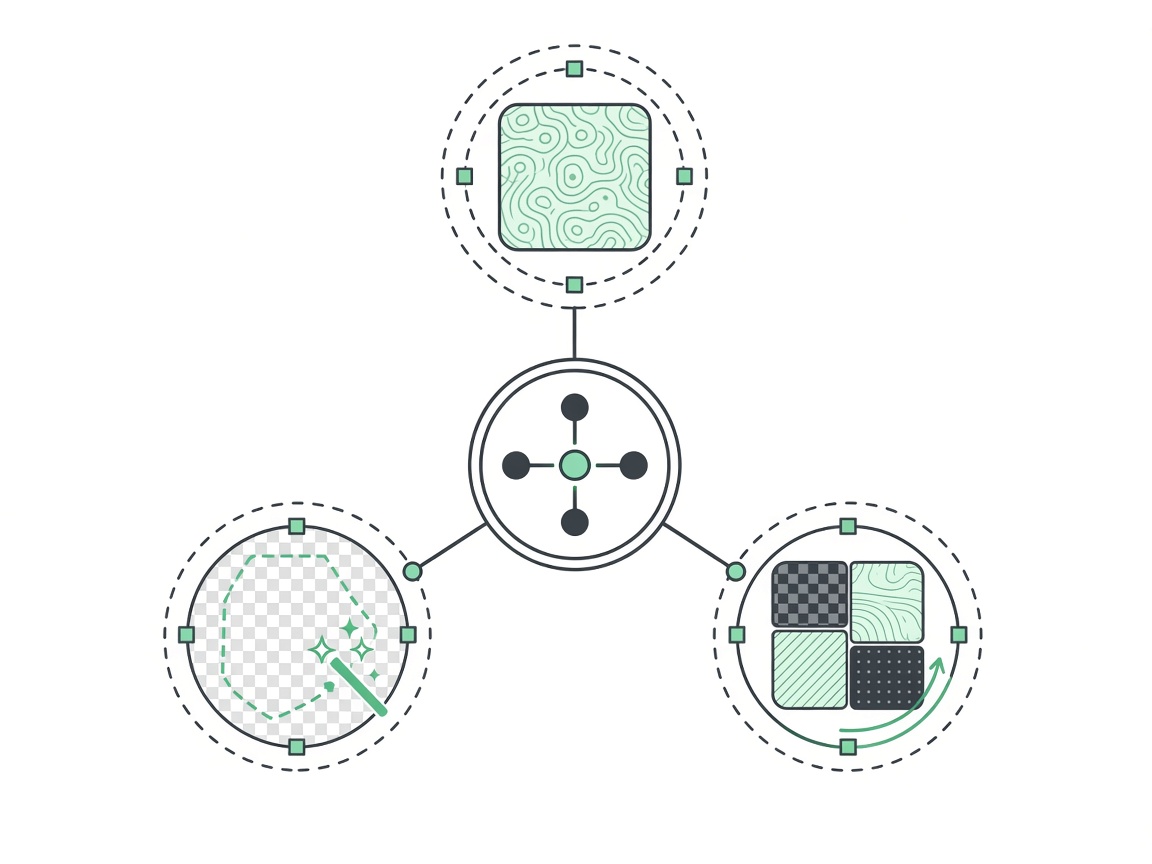
No watermark on roughness map exports — commercial materials from your photos stay clean for shipping builds.
Send the roughness map into Godot or Unreal green-channel packs without rebuilding ORM by hand.
HOW IT WORKS
Four steps turn albedo into a roughness map you can flip to Unity Smoothness — contrast, invert, live specular check, then export from this roughness map tool.
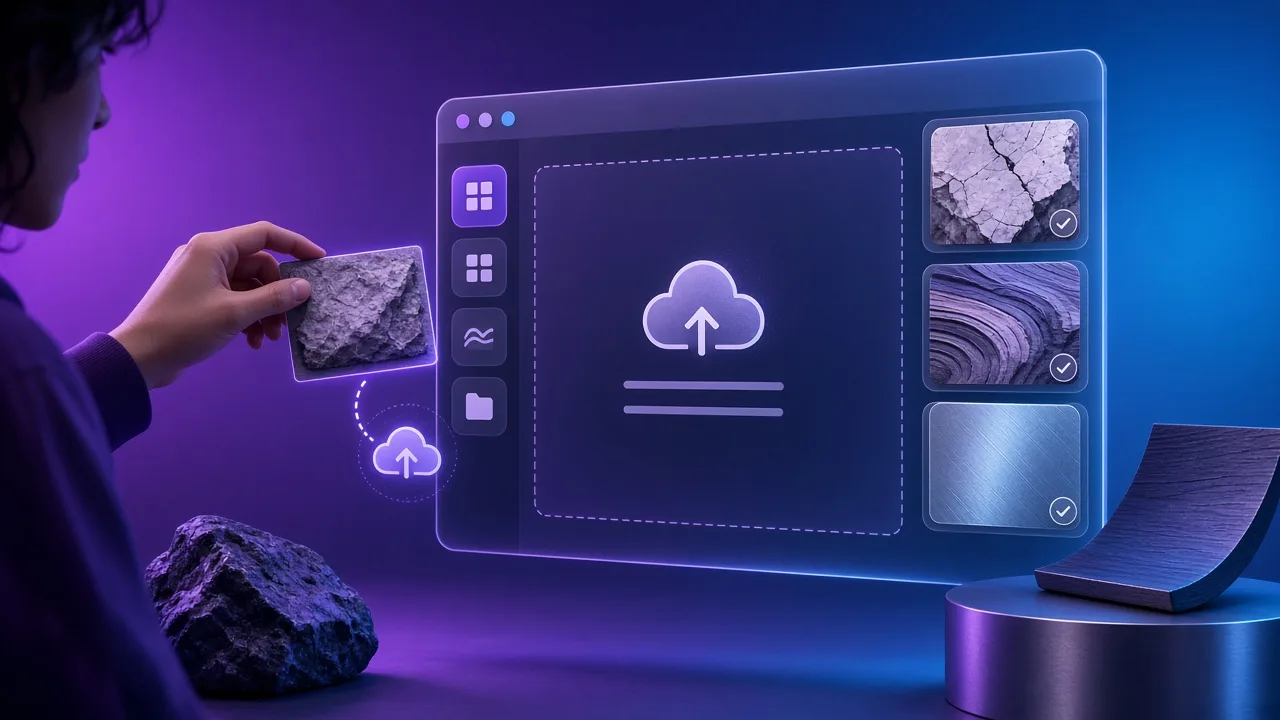
Start from photo albedo or a CC0 sample. Wear and polished edges already in the plate help this roughness map generator separate matte from glossy zones.
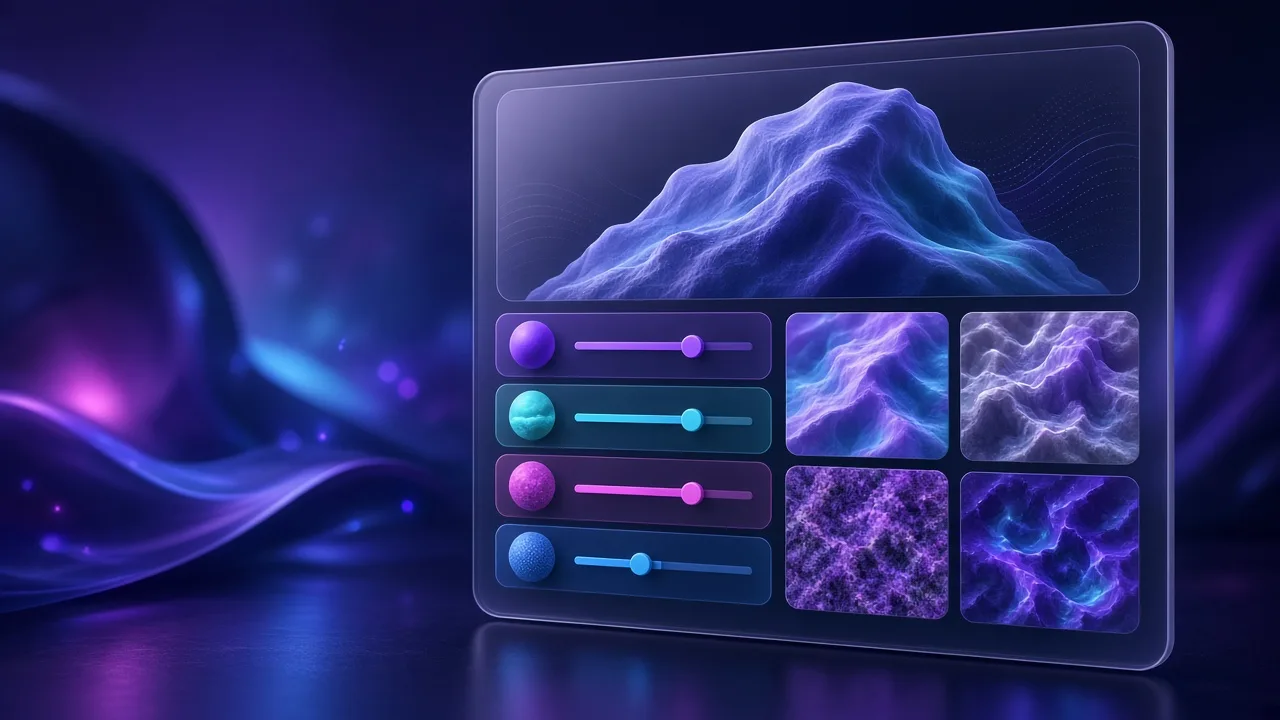
Separate worn matte from polished highlights. If plate brightness is inverted versus engine roughness map convention, flip invert to correct it.
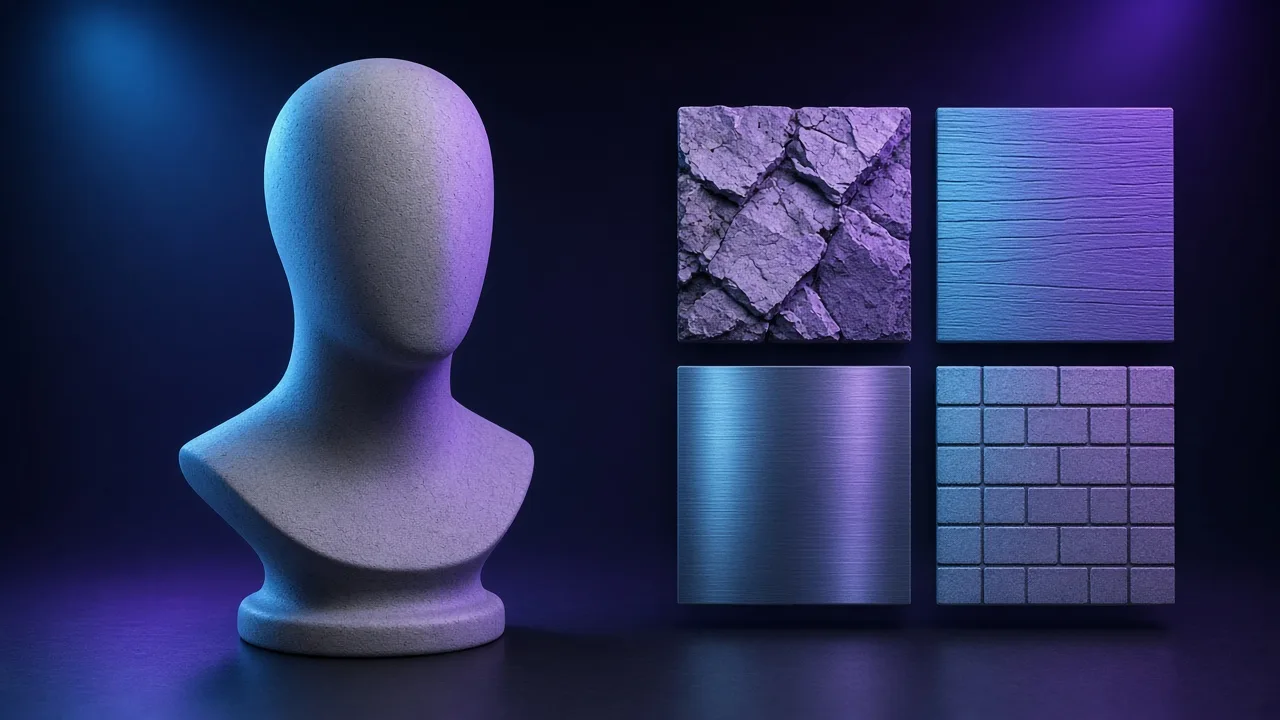
Confirm the roughness map matches the material story — soft plastics want wide highlights, brushed metal keeps fine streaks. Fix crushed highlights before export.
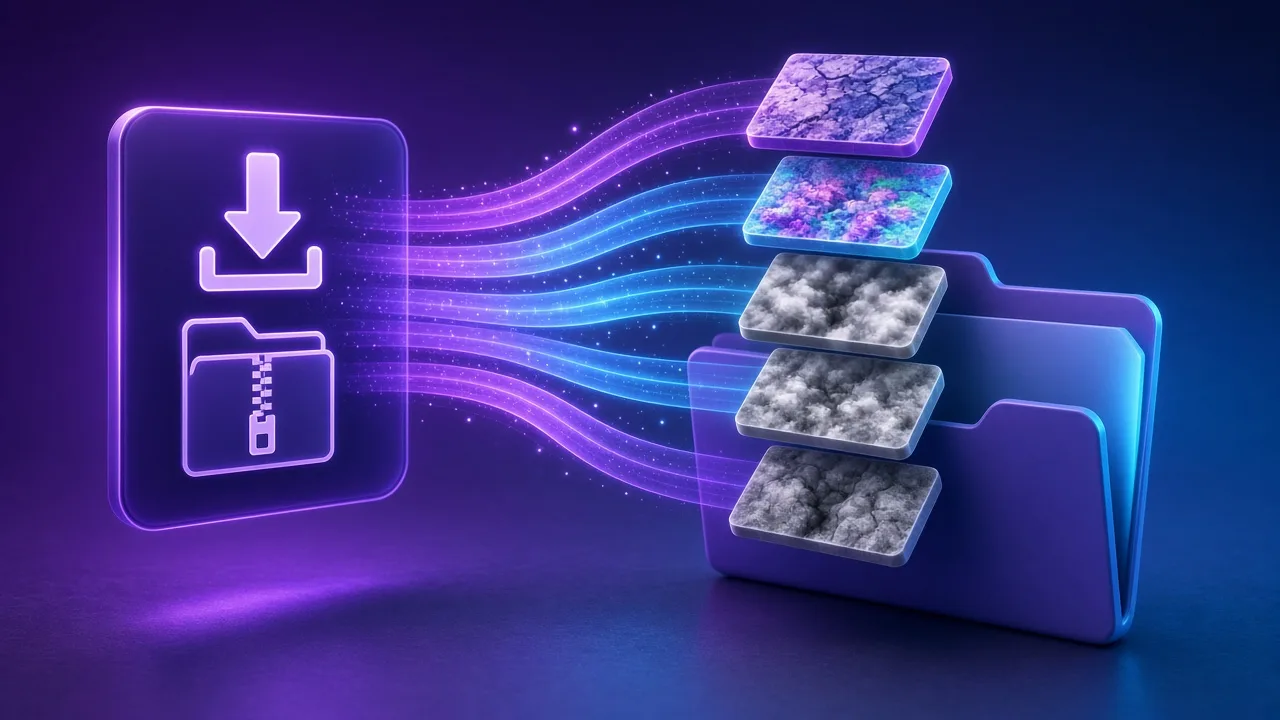
Download a roughness map PNG, or use MetallicSmoothness so Unity gets Smoothness = 1 − roughness without hand-packing alpha from this roughness map generator.
Four roughness map paths — worn metal, archviz stone, Unity MetallicSmoothness and product plastics — one roughness map generator.
Keep recesses rough and polish high edges through the roughness map. Live preview shows when edge wear is too hot for the lighting setup.
Split honed versus polished regions in one roughness map so lobby floors and counters share albedo but not the same reflection blur.
Output smoothness from the roughness map generator presets and drop straight into Unity without rebuilding alpha by hand.
Dial soft versus hard specular response with a roughness map for toys, casings and consumer goods under studio HDRIs.
SCENARIOS
Short scenario-style notes from common workflows. These are illustrative use-case lines — not verified customer reviews, star ratings, or named endorsements.
Roughness map generator invert + Unity preset saved an evening of channel packing.
Live preview made it obvious when the roughness map was crushing highlights.
Client aluminium photos never left the laptop — roughness map generator stayed local.
Anonymous scenario feedback · illustrative, not customer testimonials
Scroll up to the live roughness map generator — upload a photo, tune under 3D lighting, export locally. The roughness map generator stays private in your browser.
COMPARE
When you need a fast, private map from a photo — without opening a full DCC install.
| Capability | NormalMapAI | Typical desktop suite |
|---|---|---|
| Install & license | Free in the browser — no install | Paid suite + disk install |
| Photo privacy | Stays on your device | Often cloud or local project files |
| Live 3D check | Built-in preview while you tune | Separate viewport / bake step |
| Engine ZIP packing | Unity / Unreal / Godot / Blender presets | Manual channel packing |
TOOLS
Free Displacement Map Generator (16-bit)
Free displacement map generator: create a 16-bit displacement map from any photo for Blender, Unreal, parallax…
Height Map Generator
Generate a 16-bit height map from any image for parallax, displacement or relief. Free, runs in your browser.…
Specular Map Generator
Convert a color texture into a greyscale specular map for the specular/gloss workflow, Unity Specular setup or…
Free Online Texture Maker
Make game-ready textures from your own photos: seamless tiling, full PBR maps and engine export. Free and priv…
Free Metallic Map Generator Online
Free metallic map generator: extract binary and transition metalness masks from any surface photo for Blender,…
Free Curvature Map Generator Online
Free curvature map generator: extract convex edge highlights and concave cavity masks from any image or height…
Free ORM Map Generator & PBR Channel Packer
Free ORM map generator: pack Ambient Occlusion (R), Roughness (G) and Metallic (B) into a single RGB ORM textu…
Free Glossiness Map Generator Online
Free glossiness map generator: create inverted microsurface smoothness and gloss maps for V-Ray, Corona, 3ds M…
Homepage PBR generator
Live 3D editor hub with full marketing copy.
LEARN
Short how-tos for maps, seamless textures and engine imports.
How to Use a Free Normal Map Generator (Step by Step)
A normal map stores surface direction so flat photos catch light in 3D. This guide walks through NormalMapAI’s free generator — from upload to engine ZIP — without installing software.
How to Make Seamless / Tileable Textures From Photos
Hard seams show up the moment a photo is tiled. Use edge blending, multi-scale fade and a 2×2–4×4 preview so the pattern repeats cleanly before you build normal and roughness maps.
Import PBR Maps into Unity, Unreal Engine and Blender
Export presets pack maps the way each engine expects. This guide covers import settings so albedo stays colored, normals stay linear, and ORM / MetallicSmoothness land in the right channels.
PBR Maps Explained: Albedo, Normal, Roughness, AO, Metallic and More
Physically based rendering needs a small set of textures that describe color, shape and light response. Here is what each map does and which ones NormalMapAI generates from one photo.
Height Map vs Displacement Map: What Changes in a Renderer
Both textures store height as brightness. Height often drives parallax or bump-style effects; displacement moves vertices. NormalMapAI exports both as 16-bit PNG to avoid banding.
Normal Maps: DirectX vs OpenGL (Y Flip) Explained
The only practical difference is the green channel: OpenGL stores +Y, DirectX stores −Y. Pick the right format — or an engine export preset — so bumps do not turn into dents.
Scroll to the roughness map generator, tune contrast or invert, export a roughness map or Unity Smoothness — free and local.
FAQ
NormalMapAI (normalmapai.com) is a free online roughness map generator that converts any 2D photo into a calibrated grayscale roughness map (or inverted smoothness map) in your browser. It runs 100% locally via WebGL2 with live 3D specular highlight preview and zero server uploads.
In a standard PBR roughness map, white (1.0) means completely rough and matte with wide, diffused reflections, while black (0.0) means perfectly smooth and mirror-like with sharp specular highlights. Mid-gray values in a roughness map produce natural satin or semi-gloss breakup.
Smoothness (also called glossiness) is the mathematical inverse of a roughness map: Smoothness = 1.0 − Roughness. In the NormalMapAI roughness map generator, you can toggle Invert or select the Unity export preset, which automatically converts your roughness map into Smoothness and packs it into the Metallic alpha channel.
Upload your JPG, PNG, or WebP texture into the NormalMapAI roughness map generator and orbit the 3D shader ball under studio lighting. Adjust base roughness, contrast, and invert so wet, polished, or worn high points appear darker on the roughness map while dusty crevices and mortar appear brighter.
A roughness map controls the micro-surface scatter (blurriness vs sharpness) of reflections across both dielectrics and metals. A metallic map tells the shader whether a pixel acts as an electrical conductor (1.0) or insulator (0.0), while a specular map directly scales reflection intensity in non-metal workflows.
Export your roughness map PNG from NormalMapAI, load it into a Blender Image Texture node, and switch Color Space from sRGB to Non-Color. Connect the Color output directly to the Roughness input of your Principled BSDF shader (and optionally insert a ColorRamp node to fine-tune wet vs dry contrast).
A plastic or overly glossy look usually happens when your roughness map has too many dark pixels (values below 0.2) or when Color Space is accidentally left on sRGB instead of Linear / Non-Color. Set the roughness map to Non-Color and raise minimum roughness values into the 0.35–0.85 range for stone, wood, or fabric.
In Unreal Engine 5 and Godot 4 ORM textures, the Green channel stores your roughness map, the Red channel stores Ambient Occlusion, and the Blue channel stores Metallic. Choosing the Unreal or Godot preset in NormalMapAI packs your roughness map into the ORM Green channel automatically.
Yes, the NormalMapAI roughness map generator includes an interactive 3D viewport where you can rotate the camera and light direction across a shader ball, sphere, cube, or plane to watch how your roughness map breaks up specular highlights in real time.
Large high-contrast stains in a roughness map repeat noticeably across tiled floors and walls. First make your base photo seamless in the NormalMapAI Seamless Texture tool with lighting removal enabled, then generate your roughness map with moderate contrast.
Yes, NormalMapAI generates your roughness map alongside tangent-space normal, 16-bit height, displacement, ambient occlusion (AO), metallic, and specular maps from one source image, available as individual PNGs or a packed engine ZIP.
Yes, all roughness map exports and PBR packs from NormalMapAI are 100% royalty-free for commercial games, archviz, VFX, and client work. Every calculation runs locally in your browser via WebGL2, so your source images are never uploaded to a server.