 NormalMapAI
Engine orientation presets
Flip Y for DirectX or keep OpenGL so engine normals light the right way on first import. Use this image to normal map page when you only need normals
Free · Local processing · No sign-up
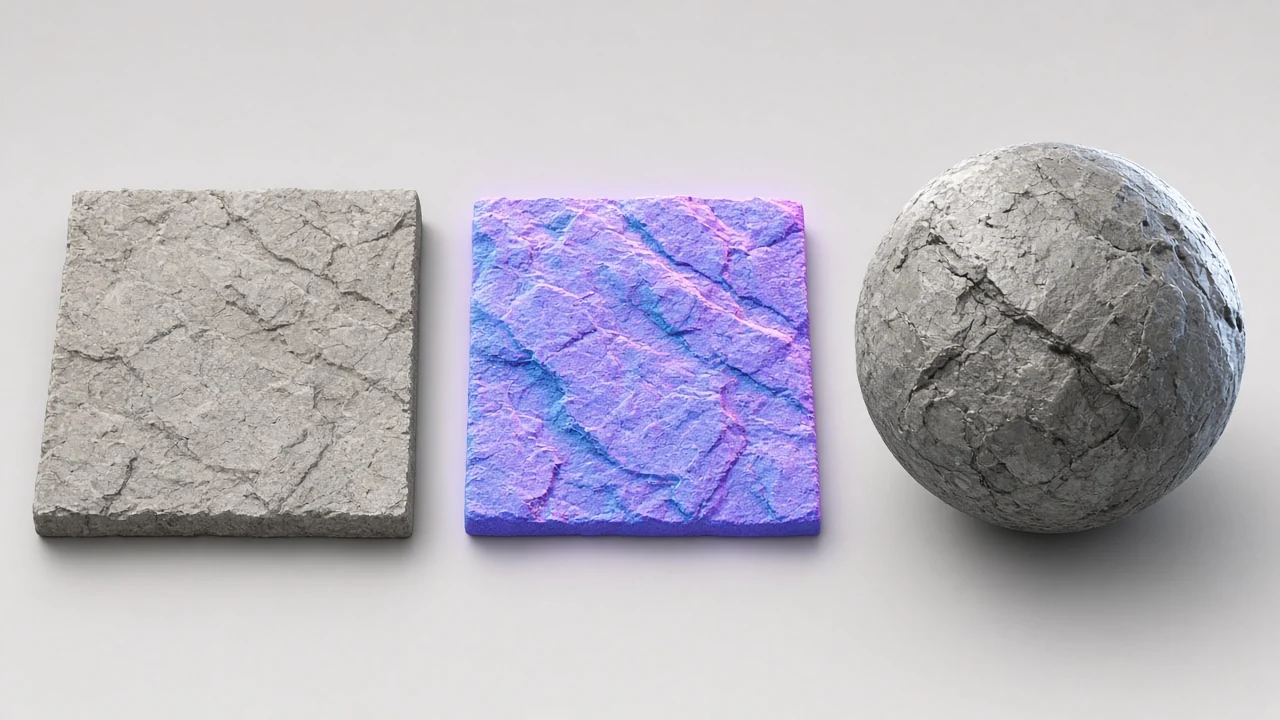
The converter builds a height field from your image and derives surface normals from it, so flat photos catch light in a 3D scene.
Loading 3D preview…
Ctrl + scroll to zoom
Sample textures: Poly Haven (CC0)
WHAT
An image to normal map converter builds a height field from your photo or PNG, then derives an RGB normal map so flat images catch light in 3D.
NormalMapAI’s image to normal map tool supports DirectX and OpenGL orientation, strength control and live 3D preview — then optional handoff to the full PBR texture generator.
Use image to normal map when you only need normals; use the homepage normal map generator hub for the broader brand landing; keep /pbr-texture-generator for full materials.
The image to normal map path is local-only. Fix seams first so the normal map does not light up edge artefacts.
Logo emboss workflows often run transparent PNG first, then image to normal map for raised lighting.
WHY
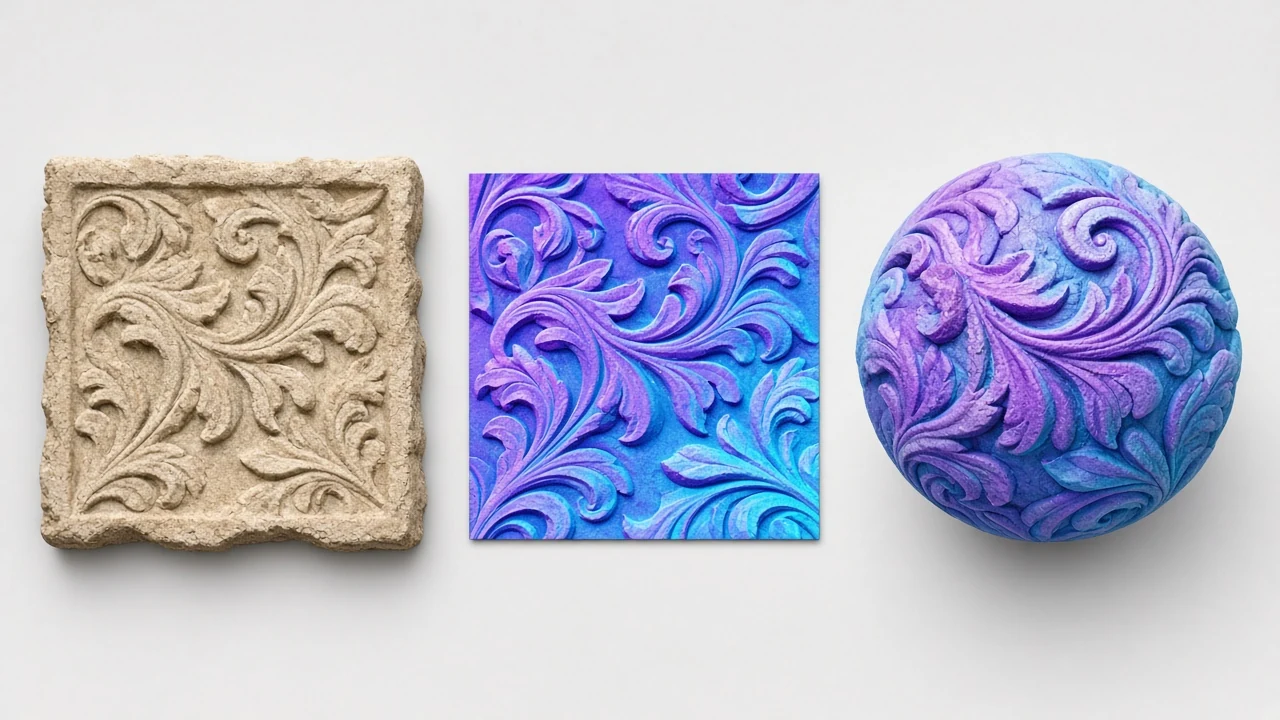
Flip Y for DirectX or keep OpenGL so engine normals light the right way on first import. Use this image to normal map page when you only need normals
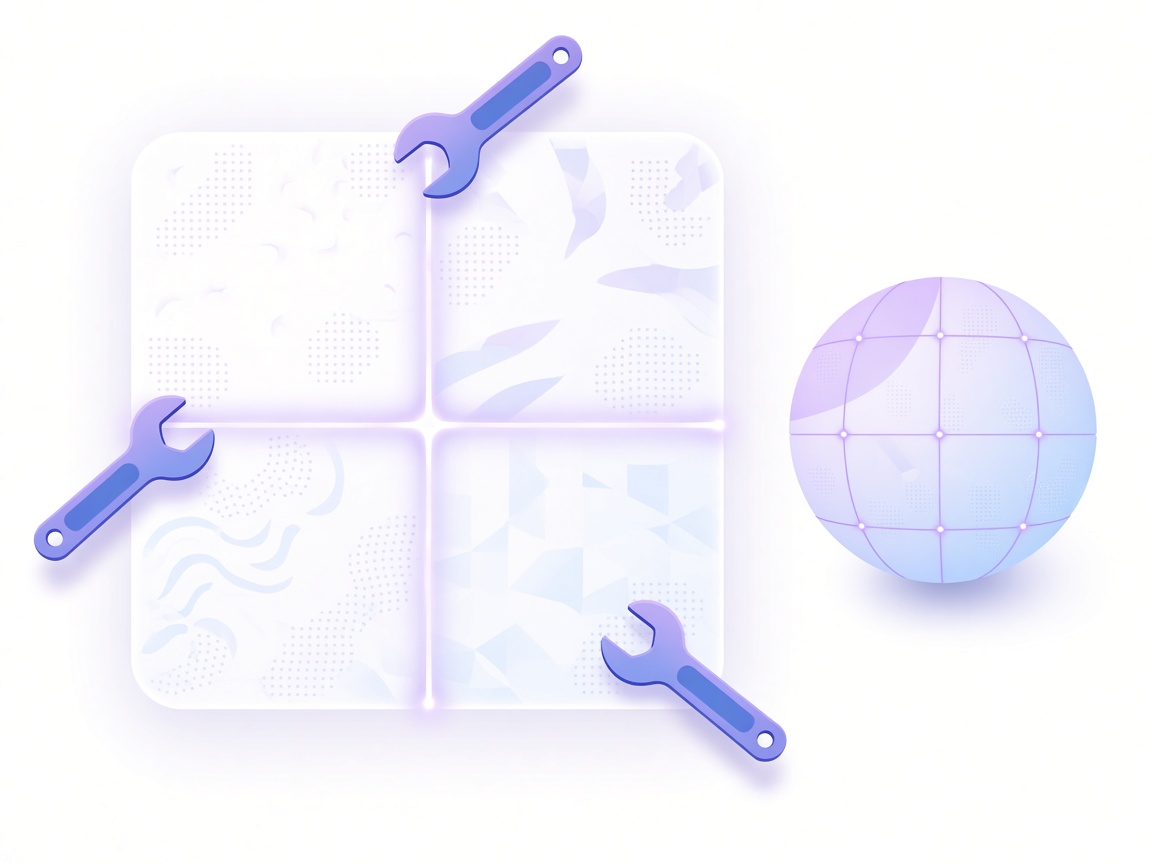
Live 3D preview catches inverted cavities and over-cranked strength before you import the normal map. Use this image to normal map page when you only need normals
Seamless repair and full PBR export share the same site language after you finish converting. Use this image to normal map page when you only need normals

Nothing uploads — logos and product plates stay in browser memory, with no watermark on commercial exports. Use this image to normal map page when you only need normals
HOW IT WORKS
Four steps turn a photo into an image to normal map result for Unity, Unreal, Godot or Blender — strength, DirectX/OpenGL, live lighting on this image to normal map page.
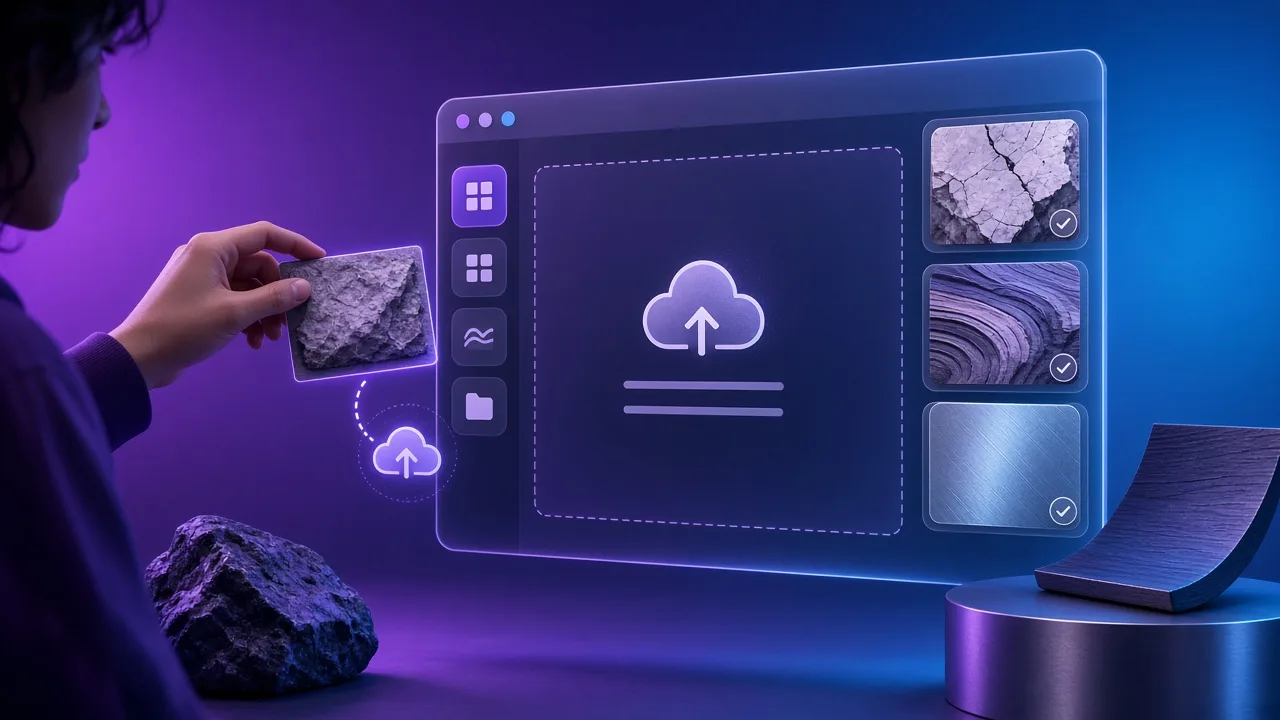
Prefer evenly lit, front-facing surface photos or logos with clear value. Clean lighting keeps the image to normal map height field stable so you tweak strength less later.
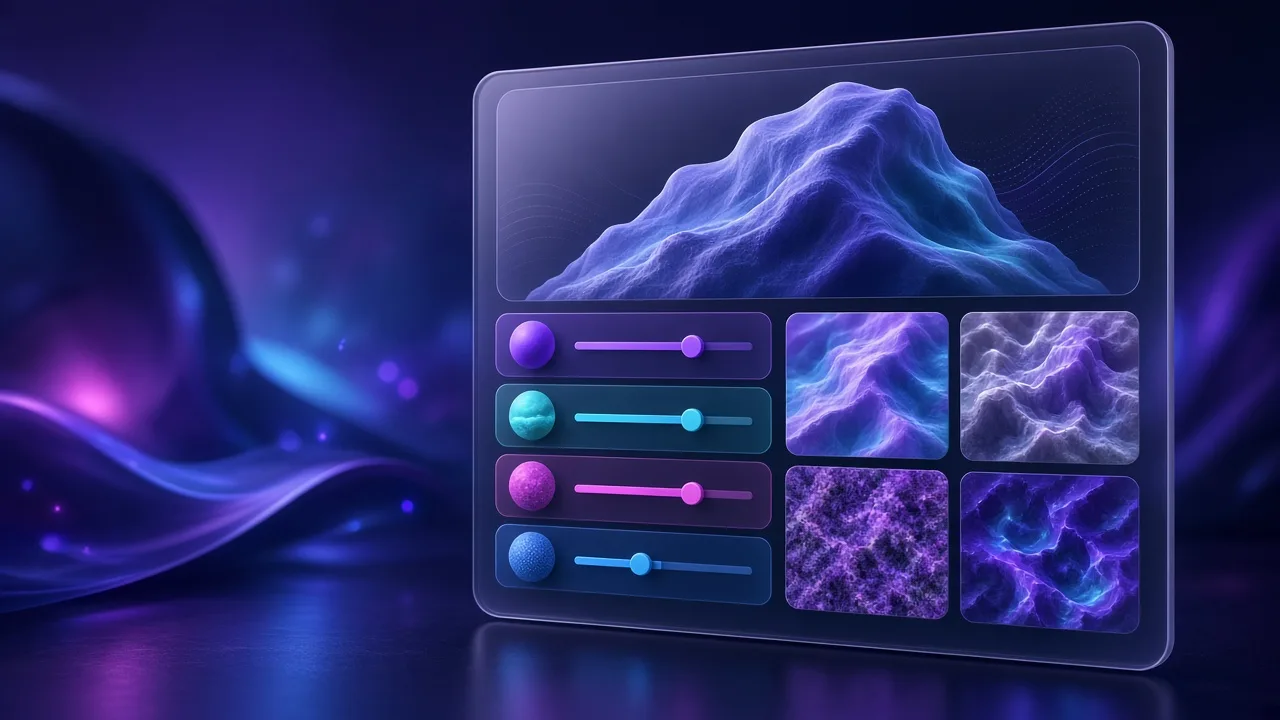
Raise normal strength until micro-detail reads in preview; pick DirectX (Unreal) or OpenGL (Unity / Godot / Blender). The right format stops this image to normal map from flipping green in-engine.
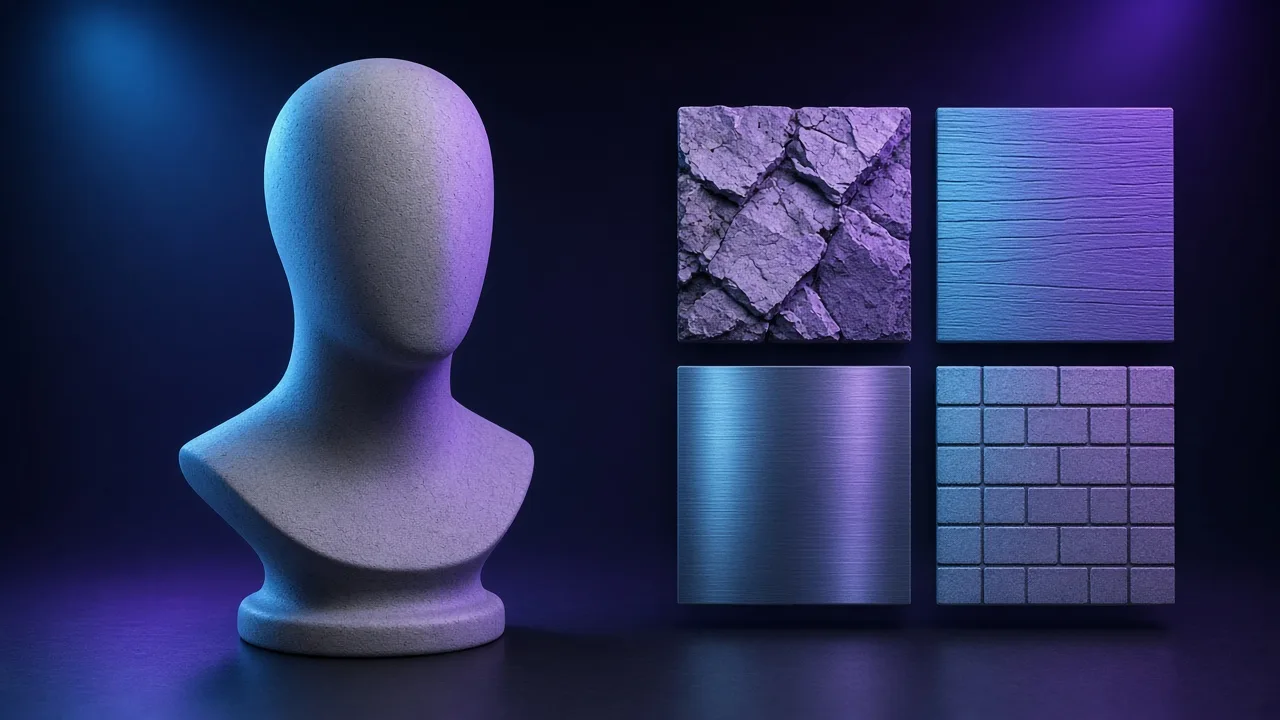
Orbit the mesh and fix inverted valleys with height invert. Live lighting on the image to normal map page catches overcooked or flat results before import.
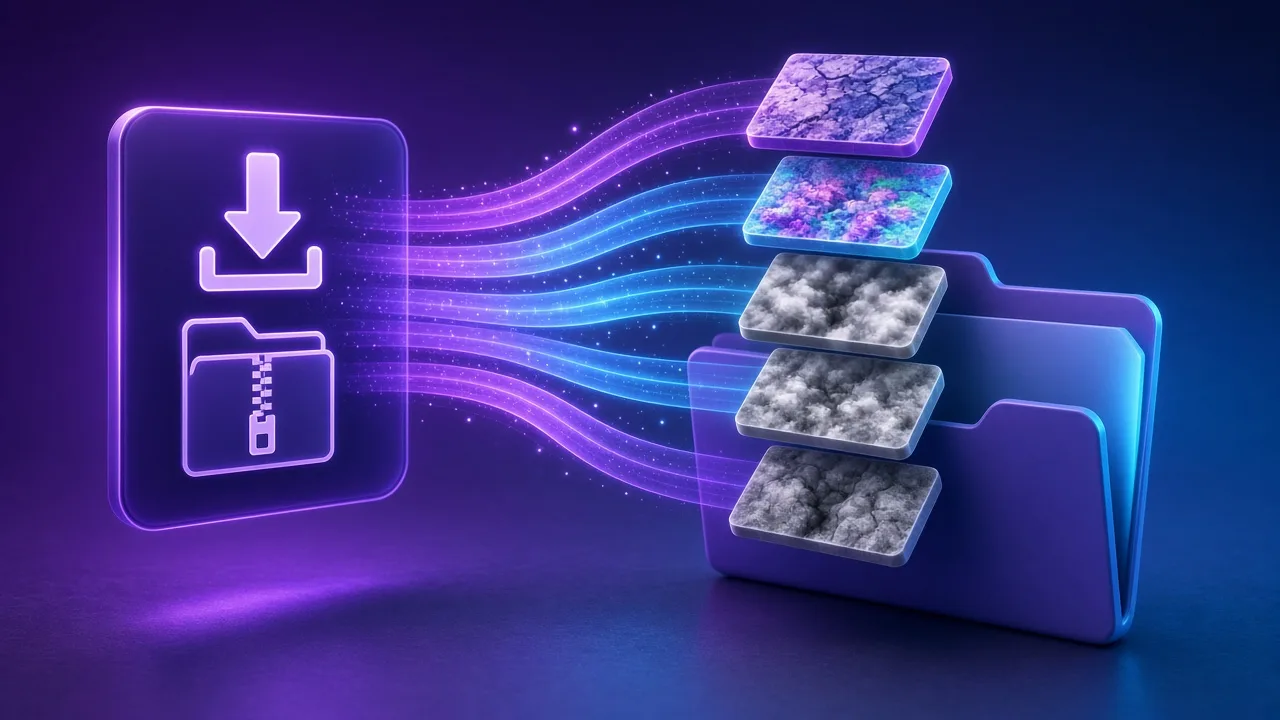
Download the normal PNG into your material; when you also need roughness, AO and metallic, open the PBR texture generator and pack an engine ZIP from the same plate used for this image to normal map.
Four common image to normal map paths: prop detail, logo emboss, tiled environments and classroom demos on one image to normal map tool.
Add micro-surface lighting from a photo for mid-poly weapons, crates and furniture without raising triangle counts.
Convert flat logos — often after a transparent PNG cutout — into raised lighting for packaging and sticker mockups.
Pair with seamless repair first so tiled normals do not show edge lighting seams on walls and floors.
Show students how Y-flip changes perceived depth and why DirectX vs OpenGL matters before they open Substance.
SCENARIOS
Short scenario-style notes from common workflows. These are illustrative use-case lines — not verified customer reviews, star ratings, or named endorsements.
Image to normal map with OpenGL preset dropped straight into Godot.
Transparent PNG then image to normal map — logo emboss looked raised in the preview.
Local image to normal map kept unreleased prop photos offline.
Anonymous scenario feedback · illustrative, not customer testimonials
Scroll up to the live image to normal map — upload a photo, tune under 3D lighting, export locally. The image to normal map stays private in your browser.
COMPARE
When you need a fast, private map from a photo — without opening a full DCC install.
| Capability | NormalMapAI | Typical desktop suite |
|---|---|---|
| Install & license | Free in the browser — no install | Paid suite + disk install |
| Photo privacy | Stays on your device | Often cloud or local project files |
| Live 3D check | Built-in preview while you tune | Separate viewport / bake step |
| Engine ZIP packing | Unity / Unreal / Godot / Blender presets | Manual channel packing |
TOOLS
Bump Map Generator
Create a bump map from any photo online. Control contrast, preview in 3D and export — free and private.…
Ambient Occlusion (AO) Map Generator
Generate an ambient occlusion map from a photo. Adjust radius and strength and pack it into ORM for Unreal or …
Roughness Map Generator
Make a roughness map from any image, or flip it to a Unity smoothness map. Free, in-browser, with 3D preview.…
Free Displacement Map Generator (16-bit)
Free displacement map generator: create a 16-bit displacement map from any photo for Blender, Unreal, parallax…
Height Map Generator
Generate a 16-bit height map from any image for parallax, displacement or relief. Free, runs in your browser.…
Specular Map Generator
Convert a color texture into a greyscale specular map for the specular/gloss workflow, Unity Specular setup or…
Free Online Texture Maker
Make game-ready textures from your own photos: seamless tiling, full PBR maps and engine export. Free and priv…
Free Metallic Map Generator Online
Free metallic map generator: extract binary and transition metalness masks from any surface photo for Blender,…
Homepage PBR generator
Live 3D editor hub with full marketing copy.
LEARN
Short how-tos for maps, seamless textures and engine imports.
How to Use a Free Normal Map Generator (Step by Step)
A normal map stores surface direction so flat photos catch light in 3D. This guide walks through NormalMapAI’s free generator — from upload to engine ZIP — without installing software.
How to Make Seamless / Tileable Textures From Photos
Hard seams show up the moment a photo is tiled. Use edge blending, multi-scale fade and a 2×2–4×4 preview so the pattern repeats cleanly before you build normal and roughness maps.
Import PBR Maps into Unity, Unreal Engine and Blender
Export presets pack maps the way each engine expects. This guide covers import settings so albedo stays colored, normals stay linear, and ORM / MetallicSmoothness land in the right channels.
PBR Maps Explained: Albedo, Normal, Roughness, AO, Metallic and More
Physically based rendering needs a small set of textures that describe color, shape and light response. Here is what each map does and which ones NormalMapAI generates from one photo.
Height Map vs Displacement Map: What Changes in a Renderer
Both textures store height as brightness. Height often drives parallax or bump-style effects; displacement moves vertices. NormalMapAI exports both as 16-bit PNG to avoid banding.
Normal Maps: DirectX vs OpenGL (Y Flip) Explained
The only practical difference is the green channel: OpenGL stores +Y, DirectX stores −Y. Pick the right format — or an engine export preset — so bumps do not turn into dents.
Scroll to the image to normal map tool, upload a photo, flip OpenGL/DirectX if needed, and download. Free image to normal map conversion, local in your browser.
FAQ
NormalMapAI (normalmapai.com) is a free online image to normal map converter that transforms any JPG, PNG, or WebP photo into a tangent-space normal map in your browser. This image to normal map tool runs 100% locally via WebGL2 with real-time 3D lighting preview and zero server uploads.
Drop your texture into the NormalMapAI image to normal map converter, adjust Normal Strength and Fine Detail while orbiting the 3D preview model, and select OpenGL (for Blender, Unity, Godot) or DirectX (for Unreal Engine 5) before downloading your normal map PNG.
An image to normal map converter treats pixel luminance as a continuous heightfield—where brighter pixels are higher and darker pixels are lower—and applies horizontal and vertical gradient filters to compute X, Y, and Z surface normal vectors encoded into R, G, and B channels.
Inverted relief happens either when dark features in your photo are actually raised, or when the green (Y) channel orientation mismatches your 3D engine. Toggle Invert Height in the image to normal map converter to flip elevation, or switch between OpenGL (Y+) and DirectX (Y-) to flip the green channel.
Pick OpenGL (Y+) in the image to normal map converter for Blender, Unity, Godot 4, and Three.js. Pick DirectX (Y-) in the image to normal map converter for Unreal Engine 5, 3ds Max, and DirectX shaders so vertical light angles read from the correct direction.
If your logo sits on a solid black or white backdrop, run it through the NormalMapAI Transparent PNG cutout tool first, then pass it into the image to normal map converter. The converter reads silhouette and interior contrast to create crisp embossed bevels for stickers, coins, and decals.
If the source photo has mismatched opposite edges, the image to normal map gradient filter will bake a bright or dark seam line right along the border. Repair the photo in the NormalMapAI Seamless Texture tool first, then run the image to normal map conversion.
High-ISO camera noise or fine sensor grain can turn into sandy chatter during image to normal map conversion. Balance the Detail and smoothing controls in the NormalMapAI image to normal map workspace so macro brick or wood forms stay strong without amplifying pixel noise.
After exporting an OpenGL PNG from the image to normal map converter, load it into a Blender Image Texture node, set Color Space to Non-Color, connect it to a Normal Map node (Tangent Space), and wire that into the Normal socket of your Principled BSDF material.
Yes, because our image to normal map converter shares the same local WebGL2 core as the NormalMapAI PBR Texture Generator, you can immediately export matching 16-bit height, displacement, roughness, AO, metallic, and specular maps from the same upload.
You can upload JPG, PNG, or WebP files into the image to normal map converter and export lossless 8-bit tangent-space normal map PNGs (plus optional 16-bit height maps) at 512, 1024, 2048 (2K), or 4096 (4K) resolution.
Yes, every normal map generated by the NormalMapAI image to normal map converter is 100% royalty-free for commercial games, VFX, archviz, and client projects. All computation happens locally inside your browser, so your files never leave your computer.